
Evoto’s AI Look Training feature allows you to create personalized AI-powered editing presets based on your unique color style. By training the AI with your edited photos, Evoto learns your color grading preferences and can automatically apply your look to new images.
Training Requirements
Minimum Photo Requirements
- Minimum 200 photos with color effects applied
- More training photos generally produce better results
- Photos should reflect a consistent editing style
- Maximum 20,000 photos per Look
Supported File Formats
- RAW Only: Requires 200 RAW images – Look can only be applied to RAW files
- JPEG/TIFF Only: Requires 200 non-RAW images (JPEG/TIFF/PNG/HEIC) – Look can only be applied to non-RAW files
- Both: Requires 200 of each format (400 total) – Look can be applied to any format
Color Mode Selection
- Color: For standard color photography
- Black & White: For monochrome editing styles
Important: All training photos must be uniformly Color OR Black & White – mixing is not supported.
Image Size Limitations
- Maximum file size: 1GB per image
- Minimum resolution: 128 pixels
- Maximum resolution: 12,000 pixels
How to Create Your AI Look
Step 1: Basic Information
Set your Look name and select the photo type (Wedding, Portrait, Family, etc.)

Step 2: Choose Format & Color Mode
- Select file format: RAW Only, JPEG/TIFF Only, or Both
- Choose color mode: Color or Black & White
Note: The format you choose determines which images your Look can be applied to. Choose “Both” if you want maximum flexibility.

Step 3: Upload Training Photos
You can import photos for training in two ways:

Option A: Import from Lightroom Classic
- Select “From Lightroom Classic”
- Browse and select your Lightroom catalog file (.lrcat) – supports drag & drop

- Filter photos by Folders or Collections
- Use Star ratings, Flags, and Color labels to refine your selection
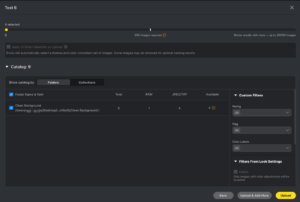
Option B: Import from Evoto Project
- Select “From Evoto”
- Choose an existing Evoto project or collection
- Filter by Star ratings, Flags, and Color labels
Note: For cloud projects, original images must be downloaded first.
AI Smart Selection (Recommended)
When you have 50+ eligible photos, enable AI Smart Selection to automatically filter images with the best diversity and color consistency. This helps improve training quality by selecting the most representative samples from your collection.
Which Images Can Be Used for Training?
Required: Global Color Adjustments
Images must contain global color adjustments such as:
- Basic adjustments (White Balance, Exposure, Contrast, etc.)
- Tone Curve
- HSL adjustments
- Color Grading
- Color Calibration
Images That Will Be Excluded
- Local adjustments only: Images with only local/masked edits (no global color changes)
- Technical edits only: Images with only noise reduction, lens correction, sharpening, grain, or color profiles
- Evoto-specific: Images using only Color Match or Multi-Image Color Consistency
- Unprocessed images: Images that haven’t been edited yet
- Missing/unreadable files: Files that cannot be accessed
- Format mismatch: JPEG images for a RAW-only Look (and vice versa)
- Color mode mismatch: Color images for a B&W Look (and vice versa)
Preview and Fine-tune
After training completes, you can preview and adjust your Look:
Preview Your Look
- Upload up to 5 test images to preview the Look effect
- Test images must match the Look’s format (RAW Look requires RAW test images)
- Note: Preview adjustments are for testing only and won’t carry over to the editing workspace

Fine-tune Adjustments
You can make two types of corrections:
- AI Correction Mode: Apply an offset to the AI-generated values (AI value + your offset = final result). Best for subtle tweaks.
- Fixed Value Mode: Completely replace AI values with your specified values. Use when you need exact control.
Adjustable parameters:
- Basic: Supports both AI Correction and Fixed Value modes
- Curve, HSL, Color Grading, Color Calibration: AI Correction mode only

Using Your Trained Look
Look Status Indicators
- Unready: Minimum photo requirement not met (need 200+ images)
- Ready to Use: Look is trained and available for use
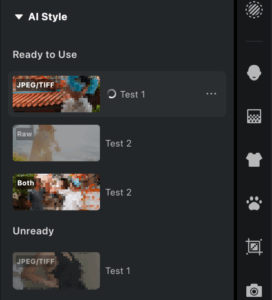
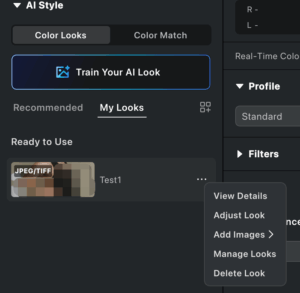
Right-Click Menu Options
Hover over any Look and right-click to access:
- View Details: See training information and image batches
- Adjust Look: Enter preview and fine-tune mode
- Add Images: Upload more training photos
- Manage Looks: View all Looks in gallery mode
- Delete Look: Remove the Look
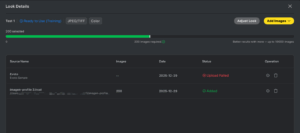
Look Details Page
Click on any Look to view its details:
- Training batch status: Wait to Upload / Uploading / Training / Added / Failed / Upload Paused
- Sample images used for training
- Add more images to improve your Look
Tips for Better Results
- Use photos from the same photoshoot or similar lighting conditions
- Maintain consistent color grading across all training images
- Include a variety of exposure scenarios within your style range
- Avoid mixing drastically different editing styles in one training set
- The more photos you provide (beyond 200), the better the AI learns your style
- Enable AI Smart Selection when available for optimal image diversity
- Use photos that represent the variety of scenarios you typically shoot
Important Notes and Limitations
- Training quality depends heavily on the consistency of your source photos
- Training time: typically 15 minutes to 1 hour depending on the number of photos
- The AI learns from your edits – ensure your training set represents your desired style accurately
- Custom Looks work best when applied to photos with similar subject matter and lighting as the training set
- Format matching: RAW Looks can only be applied to RAW images; JPEG/TIFF Looks can only be applied to non-RAW images
- Sharing: Looks can be saved to presets, but Look effects are hidden when sharing presets (Look sharing not currently supported)
Troubleshooting
Upload Paused
If you see “Upload Paused”, another device on your account may be uploading. Wait for that upload to complete, or click retry to resume.
Images Not Available for Training
Check these common causes:
- Missing global color edits: Ensure images have color adjustments (not just local edits)
- Format mismatch: Image format doesn’t match Look settings
- Color mode mismatch: B&W images for Color Look or vice versa
- Cloud images not downloaded: For Evoto cloud projects, download original images first
- Effects not processed: For Evoto images, ensure effects have been applied
Some Images Failed to Upload
This may occur due to:
- Upload errors or network issues
- Missing or unreadable image files
- Color mode mismatch detected during upload




