Every workflow in Evoto Instant begins with a project. A project keeps your photos, AI settings, export preferences, and branding organized in one place. You can create projects in two ways: directly in the Evoto Instant App or through the Web Portal.
Option 1: Create a Project in the Web Portal
Use the web portal if you want to pre-configure project settings before your event, or if you prefer working from a desktop.
Steps
- Log in to the Evoto Instant Web Portal using your Evoto account.
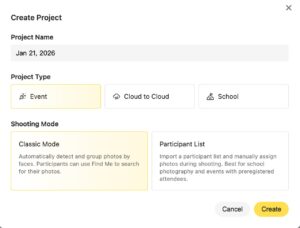
- Navigate to your Workspace and click Create Project.
- Enter a Project Name.
- Confirm the project details and check the inline AI Editing status.
-
After creation, configure sharing and participant settings from the project settings area when needed.
-

Batch Photo Renaming: On the project page, select one or more photos. Click Rename in the floating action bar at the bottom of the screen. A configuration pop-up will appear, allowing you to choose a naming rule that fits your workflow.
Evoto supports flexible naming combinations, including:
- Custom Name + Sequence (e.g., Event_01.jpg)
- Custom Name + Capture Time (e.g., Event_14:30:05.jpg)
- Original Filename + Sequence (e.g., DSC001_01.jpg)
- Original Filename + Capture Time (e.g., DSC001_14:30:05.jpg)
- Original Filename + Custom Name + Sequence (e.g., DSC001_Edit_01.jpg)

This will take you to the dedicated project dashboard, where you can fully customize your project across several dimensions:

- Basic Info: Configure your project details, including Project Name, Start & End Dates, and add a Project Description.
- Gallery Branding: Customize the gallery design or use the default template. It includes top banner, bottom banner, watermark and photographer ID profile, making your gallery more professional and attractive.
- Workflow: Set up your workflow, including selecting an AI Edit effect or choosing No Effect. Choose a recommended preset or use a custom preset created from your Evoto Desktop. You can also adjust your Export and Sharing settings here.
- Monetization: Customize your pricing strategy to maintain full control over your profit margins and adapt to different business scenarios.
- Analytics: Track your sales performance in the Analytics section, where key business metrics such as total sales, total orders, and average order value are displayed.
Note: The new project and its setting will sync to the mobile app.
Option 2: Create a Project in the App
Use the mobile app when you’re on-site and need to start capturing right away.
Steps
- Open the Evoto Instant App on your phone.
- From your Workspace, tap Create Project.
- Enter a Project Name. (Optional: add a time or date range for easier tracking.)
- Configure the main workflow settings:
- AI Culling – automatically filters out blinks, blurs, duplicates, or poorly exposed photos.
- AI Editing – choose an AI Edit effect, or select No Effect to turn AI Editing off.
- AI Culling – automatically filters out blinks, blurs, duplicates, or poorly exposed photos.
- Choose an Export Setting:
- Manual Export – you select photos for export when you’re ready.
- Auto Export – photos are exported automatically once processed.
- Manual Export – you select photos for export when you’re ready.
- Tap Create to finish.
The project will now appear in your app workspace and is ready to receive photos from your camera connection.
Whether you create your project in the app or the web portal, everything is synced through the cloud. That means you can:
- Set up in advance on the web, then capture on-site with the app.
- Start quickly in the app and refine your settings later in the web portal.
Project Home Settings Bar
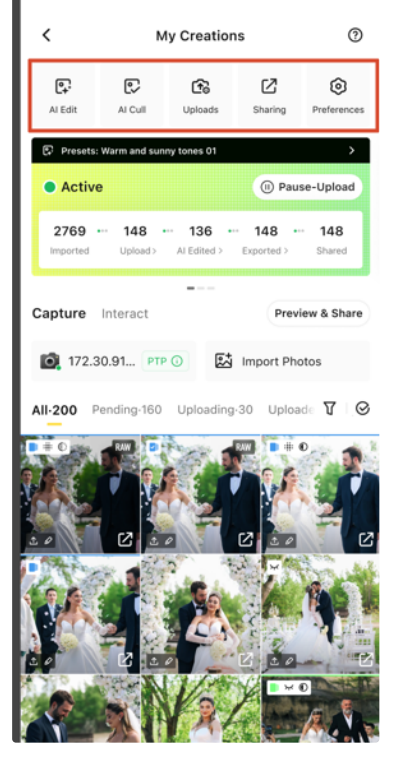
After a project is created, use the horizontal settings bar on the project home page to adjust the main workflow controls without digging through deeper settings.
- AI Edit: choose the editing effect or select No Effect to turn AI Editing off.
- AI Cull: configure automatic photo selection rules.
- Uploads: control how photos are uploaded to the cloud.
- Sharing: configure gallery access and distribution.
- Preferences: manage project-level behavior and settings.