
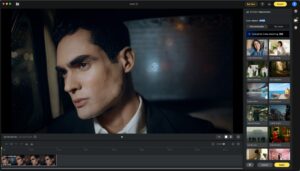
AI Color Match helps you transfer the color feel of a reference image to your video with one click. It is designed to speed up grading, improve cross-clip consistency, and make polished color results more accessible. Instantly match your video to the color tone of a reference frame, with no LUTs or masks required.
How to Use It
- Import a video into Evoto Video.
- Open the AI Color Adjustments panel and find Color Match feature.
- Click reference to choose a built-in sample or Upload for Color Matching to upload your own reference image.
- For a new clip, let Evoto Video complete the initial color analysis for the footage.
- Preview the matched result on a single frame.
- Click Apply or Apply Effects to render the look across the clip.
Reference Options
- Recommended: Recommended sample looks provided inside Evoto Video.
- My Looks: You can import your own reference images in PNG or JPG format.
What AI Color Match Supports
- LOG footage: Apply color matching directly to LOG footage without first converting it with a LUT.
- Rec.709 footage: Compatible with standard Rec.709 video footage.
- Cross-clip consistency: Helps maintain a consistent color style across different shots and footage from different cameras or devices.
Current Limitations
- AI Color Match does not currently include additional manual grading tools such as color wheels or slider-based color correction.
- Matched color results cannot currently be saved as in-app presets.
Was this article helpful?
YesNo




