
Evoto Video combines AI portrait retouching and color grading in a streamlined video-editing workspace. This guide walks you through the main areas of the interface and explains how a typical editing session works.
Project Panel
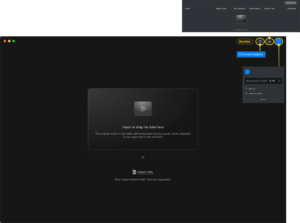
The Project Panel is the starting page of Evoto Video. It is where you import source footage, bring in supported XML files, and access key utility tools such as export records, feedback and account settings.
Import Area
When you open a project, the center area is used for importing footage. You can drag and drop supported video files directly into the workspace, or click the panel to select a file from your device. Evoto Video currently supports .mp4, .mov, and .m4v files.
Note: The original audio in the video will be included during export. However, audio playback is not supported inside the software during editing.
XML Import Area
Below the main import area, you can import an XML file instead of a video file directly. This option is designed for timeline-based workflows and currently supports single-timeline XML files only.
Buy Now
The “Buy Now” button provides a quick entry to purchase-related options for Evoto Video.
Help (Provide Feedback)
The “Help” icon is used to submit feedback or report issues to the Evoto team.
Export Records
The “Export Records” icon opens the export history panel, where you can review previous export tasks. This panel includes details such as file name, export type, quantity exported, export status, export time, and available operations.
Account Menu
The “Account” icon opens your account panel. From here, you can check your remaining export vCredits, access basic product information, check for updates, and sign out of your account.
Editing Panel

Preview Window
The preview window sits in the center of the interface and lets you inspect a single frame while adjusting retouching or color settings. For performance reasons, preview playback is capped at 1080p, but your final export keeps the original resolution and frame rate.
Timeline
The Timeline is the main workspace for reviewing clip length, moving through footage, splitting clips, and checking how edits are applied over time. It helps you control both playback and clip-level operations during editing.
Timecode Display
The timecode area shows your current playhead position and the total duration of the selected clip or timeline. This helps you track exactly where you are while reviewing or editing footage.
Playback Control
The “Play” button lets you preview the current clip from the playhead position. Use playback to review retouching or color adjustments after effects have been rendered.
Timeline Tool Bar
The toolbar above the clip track provides quick editing controls for navigation and clip operations. Common tools in this area include:
- Jump Back / Jump Forward: Move quickly between positions in the clip.
- Undo / Redo: Revert or restore recent timeline actions.
- Split Clip: Use the scissors tool to cut the clip at the current playhead position.
- AI Scene Split: Automatically detect and split footage into separate scenes for faster editing.
Time Ruler
The ruler displays time markers across the top of the timeline, making it easier to locate moments in the video and place edits more precisely.
Clip Track
The clip track shows your imported video as a thumbnail strip. This makes it easy to visually identify different parts of the footage and select the exact section you want to work on.
Playhead Position
The playhead marks the current frame location in the timeline. Move it to any point in the clip to preview that frame and apply adjustments at the desired moment.
View Controls
The controls on the upper-right side of the timeline help adjust how the timeline or preview is displayed. These controls may include:
- Fit: Adjusts the current view to fit the available panel space.
- Display Mode Buttons: Switch between different viewing or layout options for easier editing and review.
Zoom Controls
The zoom controls on the right side of the timeline let you zoom in or out for more detailed or broader timeline navigation.
- Zoom Out: View a longer portion of the clip at once.
- Zoom Slider: Adjust the visible timeline scale.
- Zoom In: See a more detailed section of the timeline for precise editing.
- Zoom to Fit TimelineThis function automatically resizes the timeline view to fit the full timeline within the current window for easier navigation and overview.
Horizontal Navigation
The scroll bar at the bottom of the timeline allows you to move across longer footage when the full clip is not visible in the current zoom level.
Right-Side Editing Panel
The right-side panel contains the main editing tools, including AI Color Adjustments and Portrait Retouching. Switch between panels depending on the type of correction you want to apply.
AI Color Adjustments
AI Color Adjustments is located above the Portrait icon and currently provides the AI Color Match feature. It allows you to use a reference image or a built-in style to match the color tone and overall visual mood of your footage more quickly and consistently. You can choose from recommended looks, use your own saved looks, or upload an image for color matching to create a closer reference-based result.
Portrait Retouching
Portrait Retouching is used for facial and skin enhancement, and its basic workflow is generally consistent with Evoto Desktop. It offers a wide range of portrait tools, including Blemish Removal, Skin Retouching, Facial Reshape, Teeth, Eyes, Makeup, and Full Body Reshape, allowing you to refine different parts of the subject with more flexibility. It also supports different subject groups such as Male, Female, Child, and Senior, making it easier to apply more suitable adjustments based on the person being edited.
Apply Effects

Unlike photo editing, video adjustments must be rendered across time. After making changes on a frame, click Apply Effects in the bottom-right corner to process the selected clip. A green progress bar indicates that rendering is complete and the clip is ready for smooth playback.
Save Preset
