
Galleries are how your photos are presented to clients. Evoto Instant allows you to customize the design of your galleries so they look professional, branded, and aligned with your event. All gallery design settings are saved in the cloud and sync automatically between the App and the Web Portal.
Accessing Gallery Design Settings
You can configure gallery design in the Project Settings of both the App and the Web Portal:
- On the App:
- Open a project.
- Tap the gear icon in the top-right corner.
- Go to Gallery Branding.

- Open a project.
- On the Web Portal:
- Open a project.
- In the left-hand editing panel, click Gallery Branding.


- Open a project.
Options for Gallery Branding
On the Web Portal
Evoto Instant supports 4 branding options that allow you to transform a simple gallery into a professional showcase that reflects your brand or event identity.
Activity Settings (Favorites & Notes)
The Activity Dashboard is designed to help photographers track engagement and identify their most popular photos, transforming the Evoto Gallery from a static viewing experience into an Interactive Workspace.
To enable these engagement tools, navigate to Gallery Branding > Activity and toggle the Favorites and Notes switches to ON.
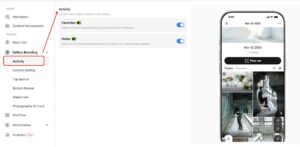
- Photographer Perspective: After enabling the feature, Favorites and Notes are displayed in the Activity tab. Photographers receive notifications for them and can reply to or delete comments directly within the platform.

- Guest Perspective: Users must verify their email / log in first.
- Favorites: Hover and click the Heart Icon to add images to a personal list. The Favorites tab allows clients to view only selected images.
- Private Comments: View photos in full detail to leave private comments. Comments are visible only to the photographer.

General Setting
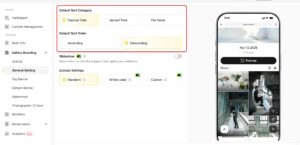
Photographers can now define a default photo sequence for their galleries. This feature also grants visitors the flexibility to personalize their view by toggling different sorting criteria on the client side.
Sorting can now be based on capture time, upload time, or file name.
Live Slideshow Display
Live Slideshow Mode allows photographers to display photos in real-time on large screens with automatic updates and QR code access for guests.
-
Default Behavior:
-
Classic Mode (Global On): Enabled by default.
-
Participant/Private Modes: Disabled by default (to protect privacy).
-

- Slideshow Settings: Access Slideshow Settings directly from the gallery view to customize the appearance (including 3 slideshow styles, display duration per photo, QR code display and loop). Click the “Play” button. The browser will request Full Screen mode and begin playback immediately.


Top Banner
Design the banner shown at the top of your shared gallery.

- Default: By default, Evoto provides a system image.
- Customize: You can now configure separate banner crops for Mobile and Web views, preview them side-by-side, or use our new professional templates for a quick setup.
Customize mode allows you to upload your own image (less than 10MB) and flexibly adjust the top banner for different devices. Upload your image firstly, then the Image Editing window will open automatically. You can then choose the sync mode using the Link/Unlink icon next to the device selector. Next, select your desired aspect ratio and adjust the crop area.
-
- Linked (Default): Cropping is synchronized between Mobile and Web.
- Unlinked: Disable the link to crop Mobile and Web banners independently. You can now select “Mobile” to set a vertical-friendly crop, and then switch to “Web” to set a wide-screen crop.

- Template: Select a top banner format first, then upload an image (less than 10MB) that fits the chosen format.
Bottom Banner
Design the banner shown at the bottom of your shared gallery.
- Default: Banner provided by Evoto.
- Blank: The bottom of the gallery will be left blank.
- Customize: Upload your pictures to design your personalized bottom banner (less than 10MB).

Watermark
The watermark settings support two types of watermarks:
- Add Watermark (Brand Watermark): Upload and apply your standard logo or branding to photos.
- Photo Protection: Adds protective overlay layers to photos before payment to prevent unauthorized use.

Note: When Pay-to-Download is enabled, Photo Protection is turned on by default. You can customize these settings directly in the Pay-to-Download configuration menu.
Photographer ID Profile
Photographer ID Profile Feature allows photographers to showcase their personal information and contact details directly on the Gallery page, helping them present a professional image to clients and making it easy for clients to reach out.
- Photographers can create and customize their ID profile with the following details:
- Profile photo
- Full name
- Contact information
- Personal website

- Profile Card Placement Modes: You can choose how the ID Profile is displayed in the Gallery:
- Center Placement
- Displays the card in the center of the Gallery.
- Immediately visible when clients enter the Gallery.
- Floating Window
- Displays the card as a floating window in the bottom-right corner.
- Clients can click to view the details.
- Center Placement

- You can create up to 10 ID profile cards. Click Save to finish the Photographer ID Card design.
Note: Gallery branding, including custom banners, is available on the Basic plan and above.
Custom Branding
In addition to cover images, Evoto Instant supports branding options that allow you to:
- Add event-specific graphics or logos to your gallery design.
- Customize the look and feel of the gallery front page, ensuring clients see a polished and branded presentation.
All customizations you make in the Web Portal will sync with the App, ensuring consistency across platforms.
Gallery design in Evoto Instant gives you control over how clients experience your photos. By uploading cover images, creating carousels, and applying branding, you can transform a simple gallery into a professional showcase that reflects your brand or event identity.




