Once your photos reach the Shared stage of the workflow, they’re ready to be delivered to guests. Evoto Instant makes this process simple, secure, and customizable—ensuring that every guest can easily find their photos while you maintain full control over branding and presentation.
Gallery Access Methods
Visitors can access both Full Gallery and Personal Gallery using the following access methods. These options allow you to share with privacy control based on your needs.
- Public Access: Anyone with the gallery link can view the gallery without additional verification.
- Access Code: Visitors must enter a unique access code to view the gallery, providing an extra layer of security and controlled access.
The “FaceKey” Feature
The FaceKey feature helps guests quickly locate their photos within a gallery. By uploading or taking a quick reference photo, the system searches the gallery and instantly returns matching results. This saves time for guests who don’t want to scroll through hundreds of images.
- FaceKey in Full Gallery
When FaceKey is enabled under Full Gallery, visitors can locate their own photos while still being able to view all photos in the gallery.
- FaceKey in Personal Gallery
When FaceKey is enabled under Personal Gallery, guests receive a personal link that shows only the photos they appear in. They cannot view other participants’ photos.
Note: The ‘FaceKey’ feature must be enabled individually for each project in order for viewers to access and use it.


Interact Feature (Personal Gallery Only)
The Interact feature is available only in Personal Gallery. Use this feature to generate a personal gallery link for each guest. A Personal Link contains only the photos belonging to a single guest. Each guest receives one unique link, ensuring private and secure access to their own photos.
- How to Create:
- Open the Shared section of your project.
- Go to Interacted.
- Click Add, then select the person based on face-recognition grouping.
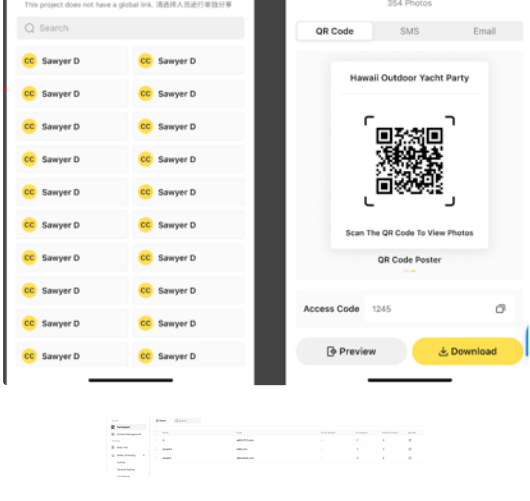
- Delivery Methods:
- SMS – send the personal link directly to a guest’s phone.
- Email – deliver the link to a guest’s inbox.
This method ensures privacy while giving every guest a direct connection to their own images.
Full Gallery Sharing
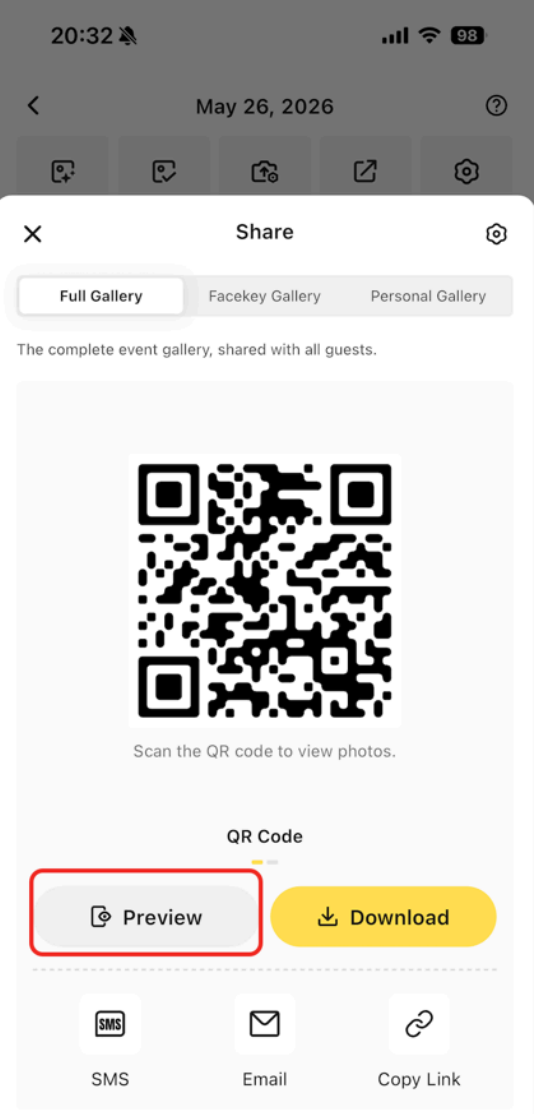
The Full Gallery contains all photos from your event. You can share this gallery with guests in several ways:
- Open Link – generate a single link that can be shared with anyone.
- QR Code – print or display a QR code on-site for guests to scan and access the gallery instantly.
- Password-Protected Portal – add a layer of security by requiring a password before viewing. (Available only through the Web Portal.)
Full Galleries are best when you want guests to browse the entire collection from the event.
Personal Gallery Sharing
For more personalized interaction, Evoto Instant supports Personal Galleries powered by face recognition.
- Photos are automatically grouped by appearance.
- Each guest receives a unique personal gallery containing only their photos.
Private galleries can be delivered via:
- SMS – a personal link sent directly to a phone.
- Email – a secure link delivered to an inbox.
This method ensures privacy while giving every guest a direct connection to their own images.
Customization Options
Evoto Instant makes it easy to present your galleries professionally and align them with your brand identity. Customization options include:
- Top Banner & Bottom Banner – add banners, cover images, and event titles to the front page of your gallery.
- Watermarks – automatically overlay your logo or text watermark to protect your photos.
- Domain Customization – use your own branded link instead of a generic sharing link for a polished, client-facing experience (Available only through the Web Portal).
These options can be set in advance when creating or editing a project through the Web Portal or the Project Settings section on the App , giving you full control over how guests experience your galleries.
Current Gallery Types and Distribution
Evoto Instant separates sharing into Settings and Distribution. Use Settings to configure which galleries are available, how visitors access them, and what permissions apply. Use Distribution to share links, QR codes, posters, or participant-specific access information.
- Full Gallery: includes all shared photos in the project and replaces the older Global Gallery terminology.
- FaceKey Gallery: provides a dedicated face-search gallery so visitors can find their own photos.
- Personal Gallery: contains photos associated with a specific participant through Interact and replaces the older Individual Gallery terminology.
Each gallery type has its own Access Code. Gallery links remain valid until the project is deleted. Use Preview & Share to check the visitor-facing experience before distribution.
Visitors can select multiple photos and download them as a single ZIP package from Full Gallery, FaceKey Gallery, and Personal Gallery. On mobile galleries, visitors can long-press and drag to select multiple photos. If some items fail during download preparation, visitors can retry the failed items without restarting the full selection.