
Sometimes Evoto’s blemish removal does its job a little too well—along with blemishes, it can also take away natural freckles. Here’s how to bring them back in just a few steps.
Step 1: Check the Blemish Removal
- Open your portrait in Evoto.
- Go to Portrait Retouch → Skin → Blemish Removal.
- If freckles look too softened or removed, try lowering the slider slightly.
Step 2: Use the Freckles Slider
- Navigate to Portrait Retouch → Skin → Freckles.
- Increase the slider to bring back some natural-looking freckles.
- This works well for a subtle adjustment, but sometimes it won’t fully restore all freckles.
Step 3: Manual Tuning Pen (Precise Control)
- Select the Manual Tuning Pen from the toolbar.
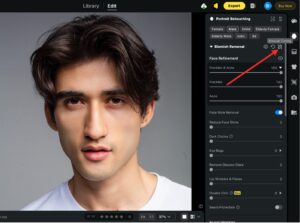
-
Brush over areas where you want these moles to reappear.
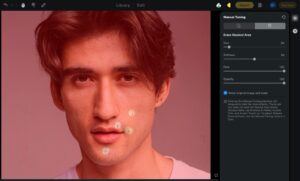
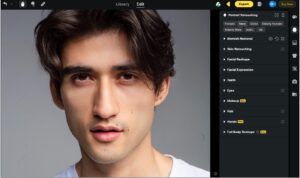
- Think of it as adjusting a mask:
- Add areas → freckles come back.
- Subtract areas → blemish removal stays applied.
Zoom in for fine control, especially around the nose and cheeks where freckles are most common.
Pro Tip: Balance is Key
Use the three tools together—Blemish Removal, Freckle Control, and the Manual Adjustment Brush—to achieve a natural-looking result.
Was this article helpful?
YesNo




