To quickly access a full list of keyboard shortcuts available in Evoto:
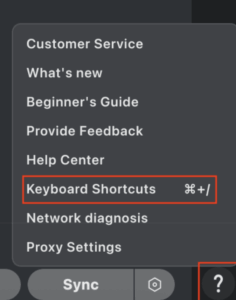
- Click the ❓ (Question Mark) icon located in the bottom right corner of the interface to open the Customer Support Center menu.
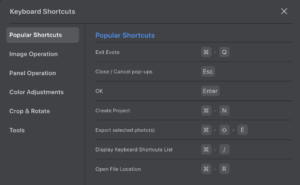
- Select Keyboard Shortcuts to open a pop-up window displaying all available shortcuts.
These shortcuts are designed to streamline your workflow and help you edit more efficiently.
Custom Shortcuts
Evoto also supports custom shortcuts so you can adapt the shortcut layout to your own editing habits and reduce migration friction if you are coming from Adobe or similar software.
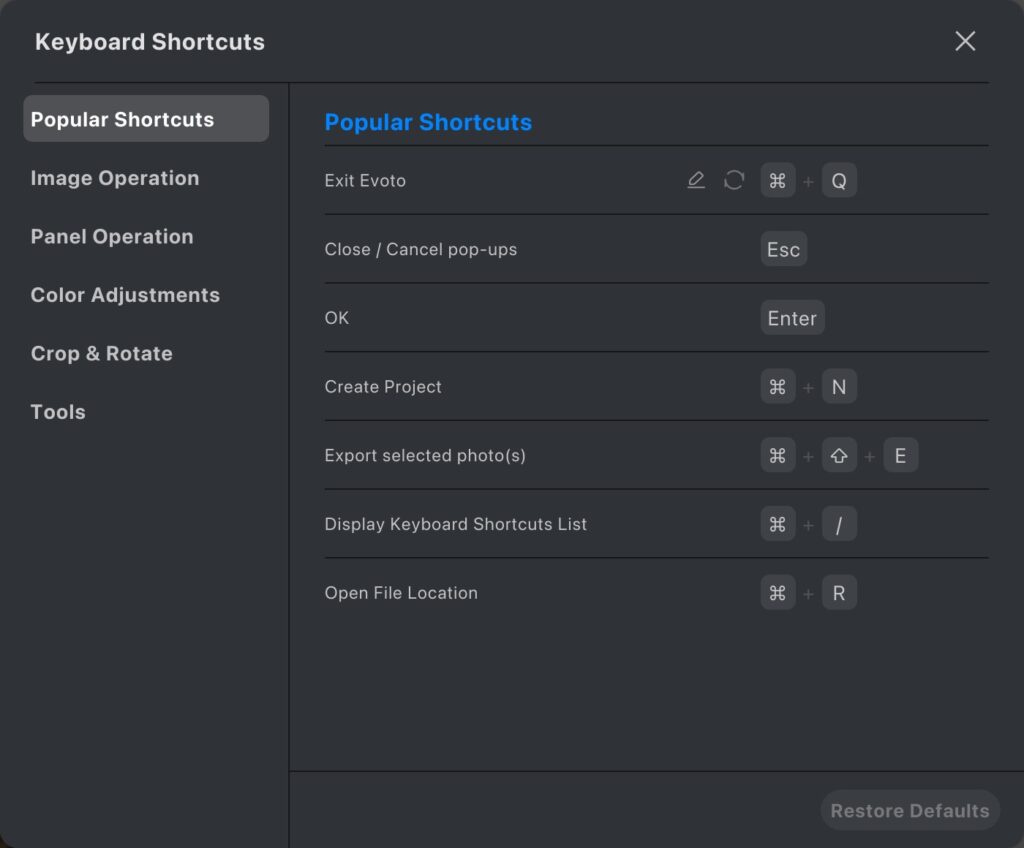
- Edit shortcuts: Open the shortcuts panel and change the shortcut assigned to a supported action.
- Conflict handling: If a shortcut conflicts with an existing one, Evoto warns you and lets you override it or adjust the assignment.
- Restore defaults: You can restore the default shortcut setup at any time.
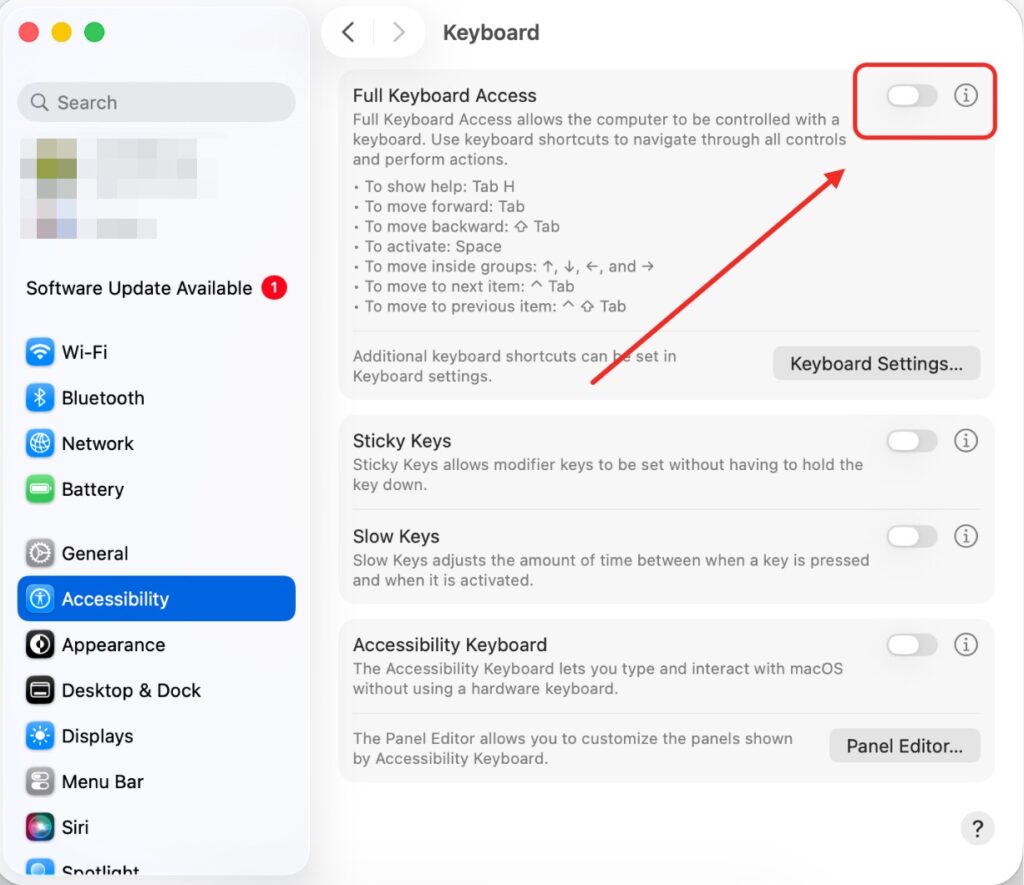
Note: make sure to toggle the Full Keyboard Access OFF when using Evoto Keyboard Shortcuts.
Was this article helpful?
YesNo