無線聯機拍攝-Canon
Supported cameral models: R/RP/R5/R5M2/R6/R6Ⅱ/R6M2/R7/R8/R10/R50/5D4/6D/6D2/70D/77D/80D/800D/M50/M50M2
Take EOS R5M2 for example.
Initial Pairing
-
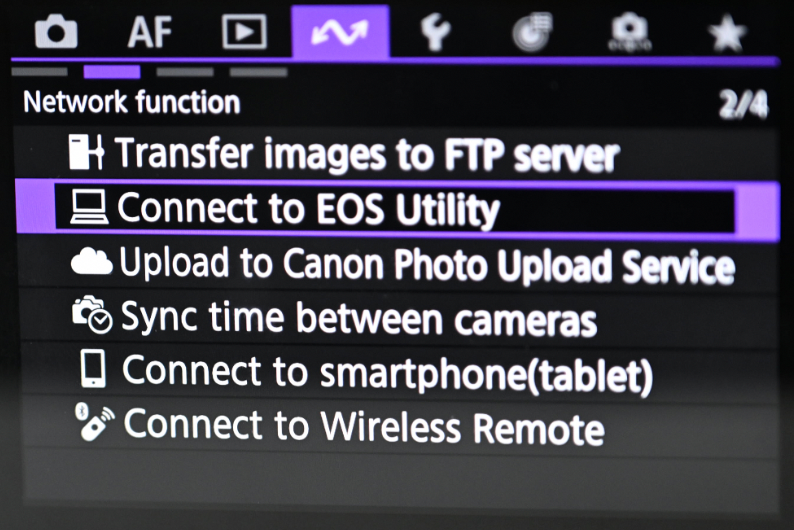
Go to Menu and find Network Function (
 icon) → Connect to EOS Utility.
-
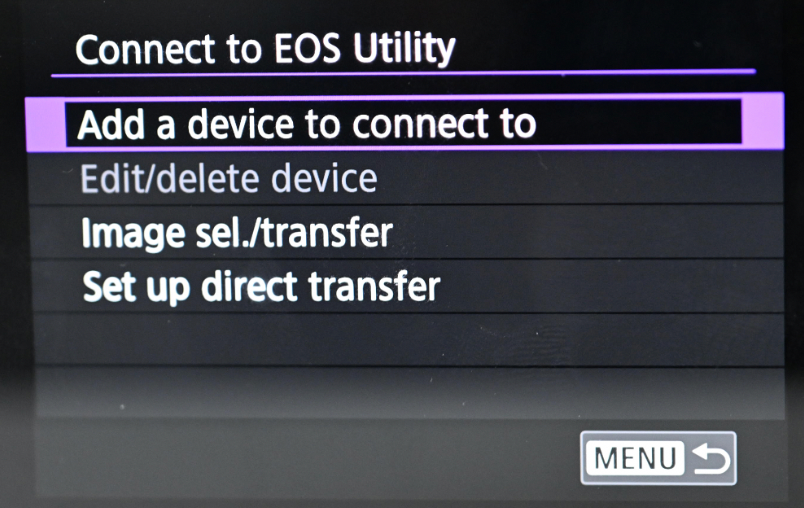
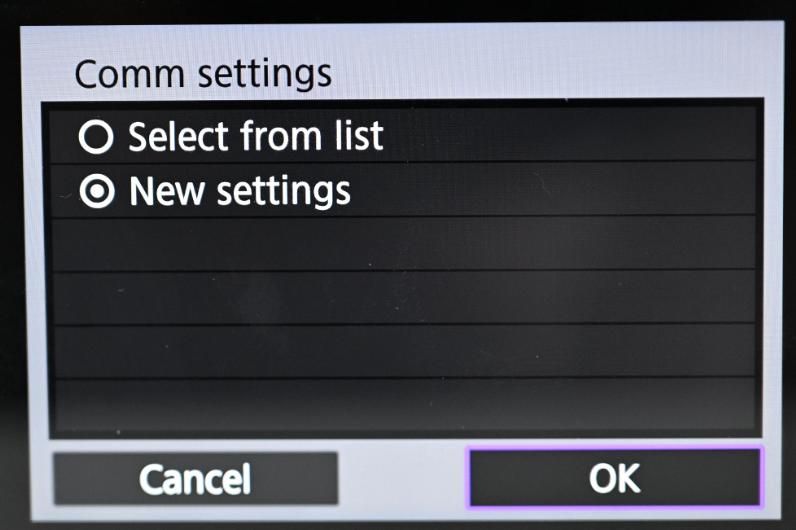
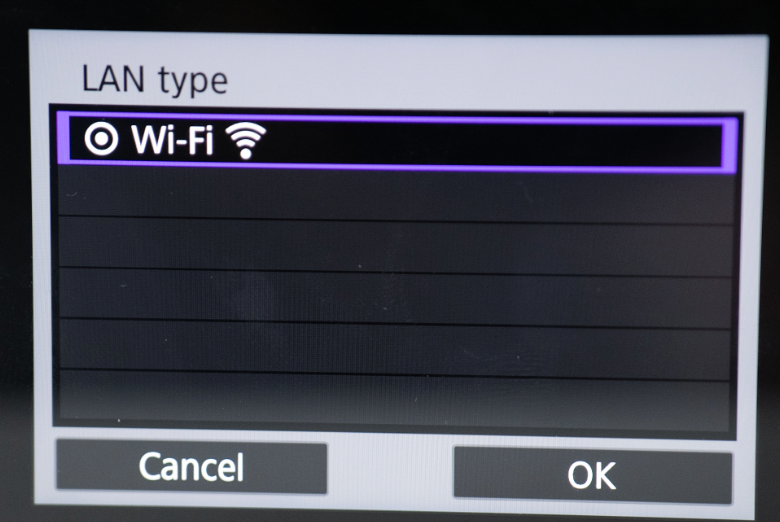
Choose Add a device to connect to, select New settings, and tap Wi-Fi to choose the same wireless network that the iPad is connected to, and enter the password to begin the connection.
-
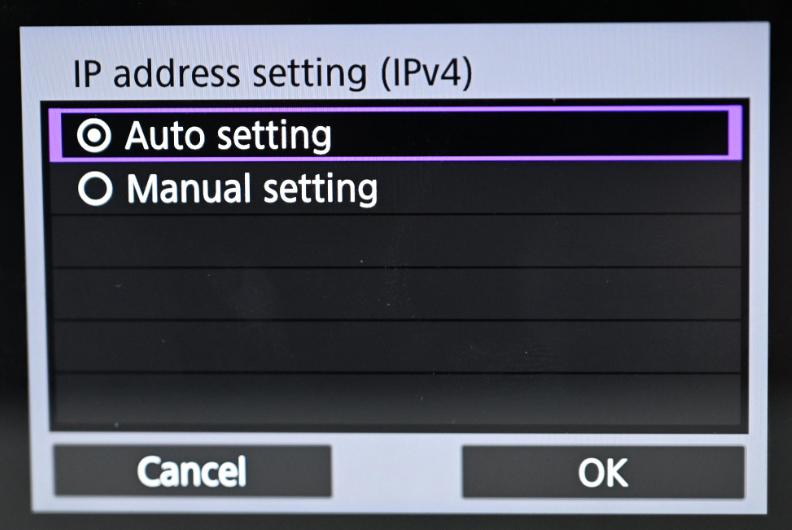
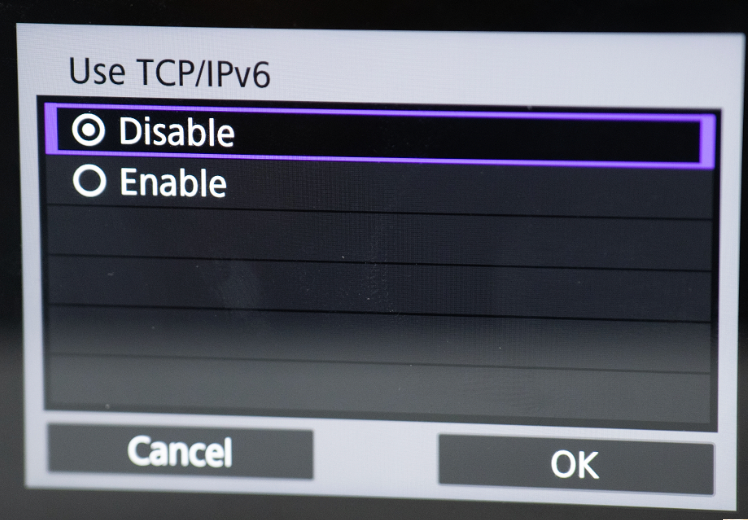
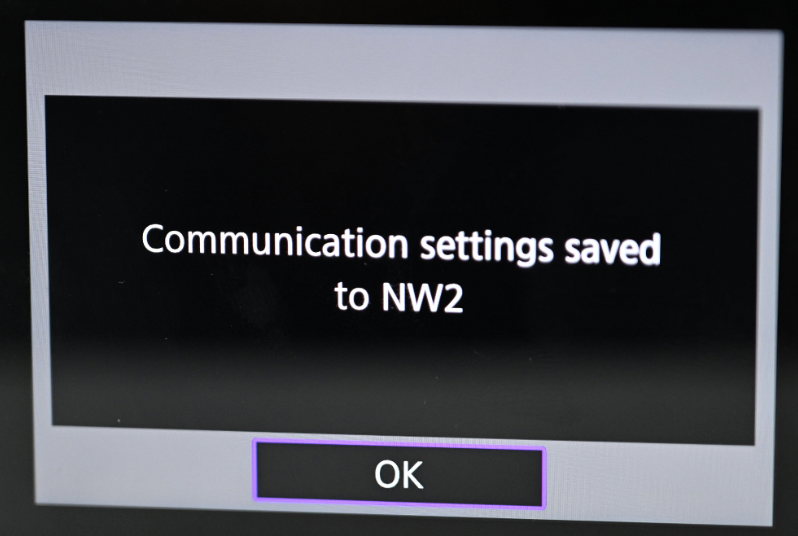
Set IP address setting(IPv4) to Auto setting, and TCP/IPv6 to Off, then click OK for auto saving settings.
-
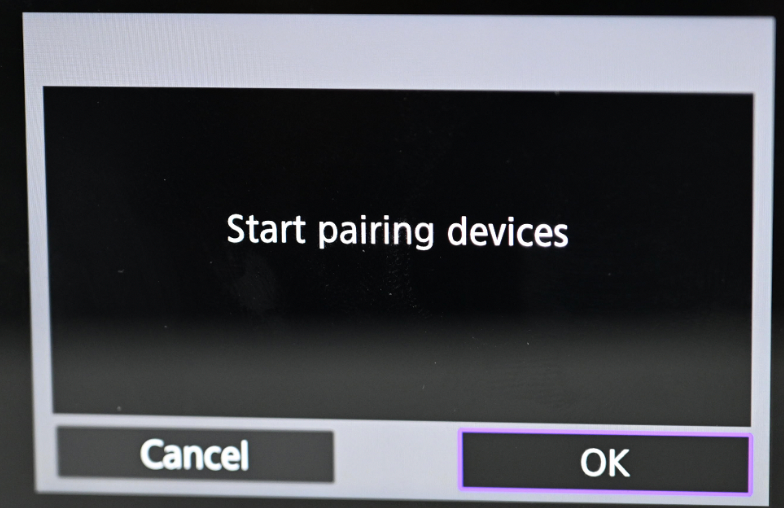
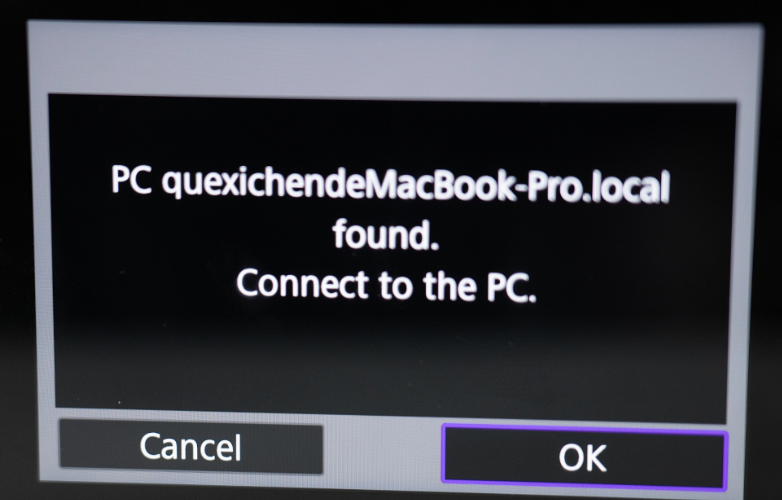
Click OK for the device pairing to start. The camera screen will show that it is pairing with the computer (displaying the computer name).
-
On the iPad, select the camera. Once connected, the camera will display a prompt asking if it’s connected. Click OK.
Subsequent Pairing
If it has been paired under the same wifi, there is no need to pair it again,You can directly select the configuration that has been paired.