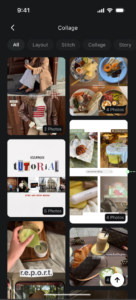
Collage combines multiple photos into a single layout using built-in templates. Use it for social media posts, before-and-after comparisons, or portfolio showcases — no third-party layout tool needed.
Using Collage
- From the Home page, browse featured Collage templates or tap All to view the full template library.
- Select a template and import photos from your library.
- Adjust individual photos within each slot — replace, rotate, flip, drag and pinch to reposition, or swap positions between slots.
- Switch templates, change canvas aspect ratios, or crop as needed.
- Export the finished collage to your photo library.

Add Text to a Collage
Use Text to add titles, dates, names, captions, or branded wording without leaving Evoto. Text can be added to a collage template and edited before export.
Add and Edit Text
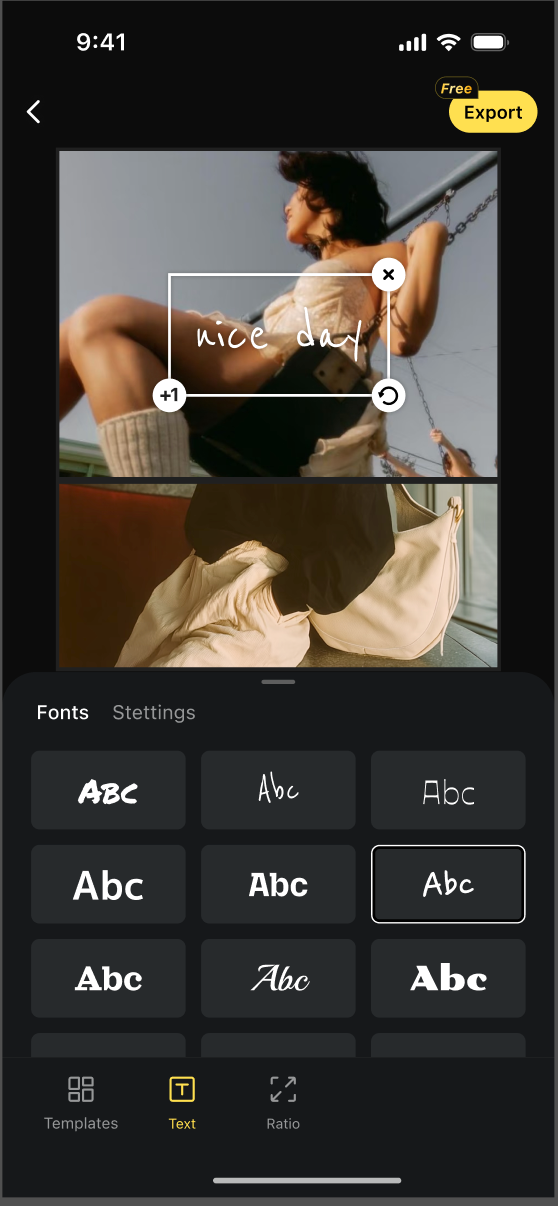
- Open a collage project and tap Text in the bottom toolbar, between Templates and Ratio.
- Choose a text template or use the default text box, then tap the text on the canvas to enter your wording.
- Tap existing text in a template to select and edit it.
- Drag the text to reposition it. Pinch to resize or rotate it, and adjust the text box width when you need the text to wrap.
Customize the Style
- Templates: Apply ready-to-use text styles.
- Fonts: Choose a font, including the device system font.
- Color: Set the text color, opacity, alignment, and basic styling such as bold, italic, underline, or strikethrough.
- Stroke and Shadow: Add an outline or shadow and adjust its color, opacity, and appearance.
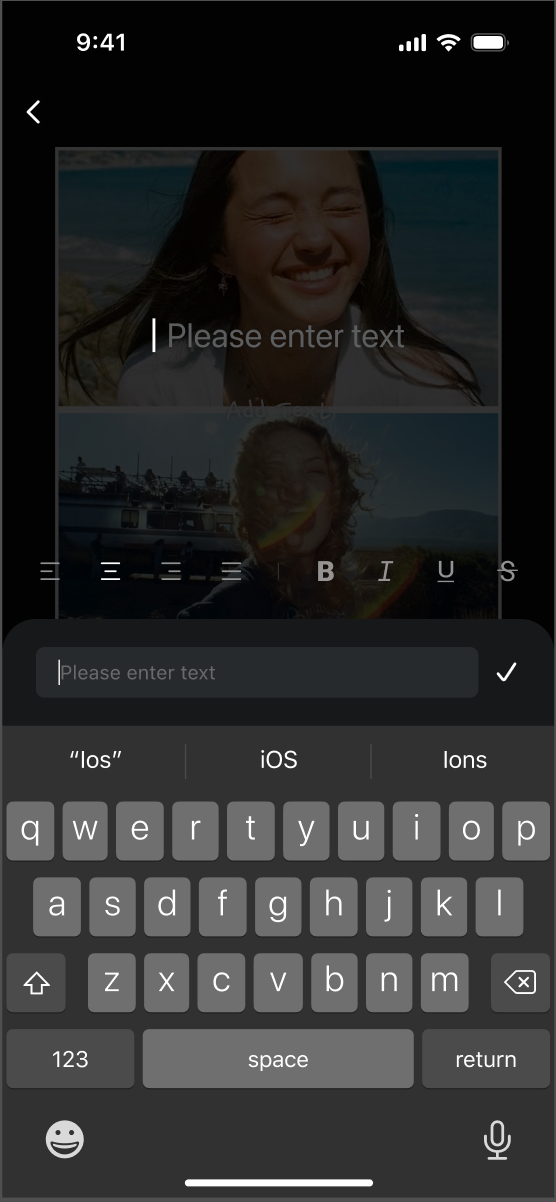
Text is saved with the collage project, so you can reopen it and continue editing later. Your text is included when you export the finished collage.
Saved collage projects can be reopened from the Project page under the Collage tab.
Was this article helpful?
YesNo