
Some users may experience a file browser display issue when opening local folders in Evoto. The file dialog may appear with a different style or layout.
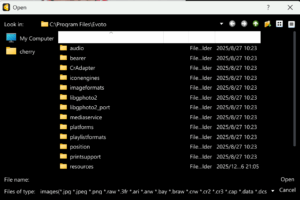
How to Resolve
Step 1: Locate Your Workspace Path
- Open Registry Editor
- Press Win + R to open the Run dialog, type regedit, and press Enter.
- Navigate to Evoto Registry Key
- In the Registry Editor, navigate to the following path:
Computer\HKEY_CURRENT_USER\SOFTWARE\Evoto_pro
- In the Registry Editor, navigate to the following path:
- Check AppDataPath Value
- Find the AppDataPath entry. Double-click on it to view the data path value. The default value is typically:
C:\Users\YourUsername\AppData\Roaming\Evoto_pro - Copy this path and paste it into File Explorer to verify it exists. This confirms that Evoto’s data storage location is correctly configured.
- Find the AppDataPath entry. Double-click on it to view the data path value. The default value is typically:
Step 2: Delete the Temporary Lock File
- Close Evoto: Ensure the application is completely shut down.
- Remove File: In the folder identified in Step 1, find the file named
lockopenfile.tmpand delete it.
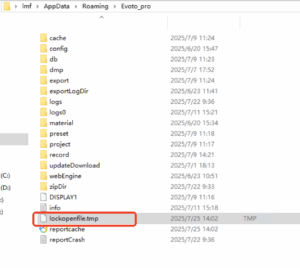
- Restart: Open Evoto again. The modern file browser should now be restored.
Still Having Issues?
Please contact support@evoto.ai for further assistance.
Was this article helpful?
YesNo




