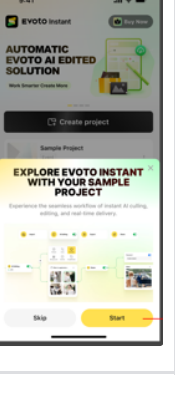
The Sample Project lets you explore Evoto Instant before using photos from a real event. It is designed for first-time users who want to understand the workflow without setting up a full shoot.

What the Sample Project Includes
The walkthrough uses 11 cloud-hosted sample wedding photos to demonstrate the main Evoto Instant workflow.
- AI Edit
- AI Cull
- Import
- Review
- Preview & Share
Upload Your Own Test Photos
Inside the Sample Project, you can upload up to 10 of your own photos for free experimentation with watermarking and gallery setup.
How to Use the Walkthrough
- Open Evoto Instant and choose the Sample Project walkthrough.
- Follow the guided workflow to review AI Edit, AI Cull, Import, Review, and Preview & Share.
- Optionally upload your own test photos.
- Check how watermarking and gallery preview behave before creating a real project.
When to Use It
- Use it before your first event to understand the complete workflow.
- Use it to test gallery setup without uploading a client project.
- Use it to train team members before on-site shooting.
Related Articles
Was this article helpful?
YesNo